Creating a product page
A guide to the entire product page creation process, from entering product information to editing, AI edits, and exporting.
Creating a product page follows the steps below.
Once you enter the product information and upload the product images, AI generates the product page.
The generated product page can be edited and downloaded to match the platform specification you want.

1.1.Creating a product page – Entering product info & generating
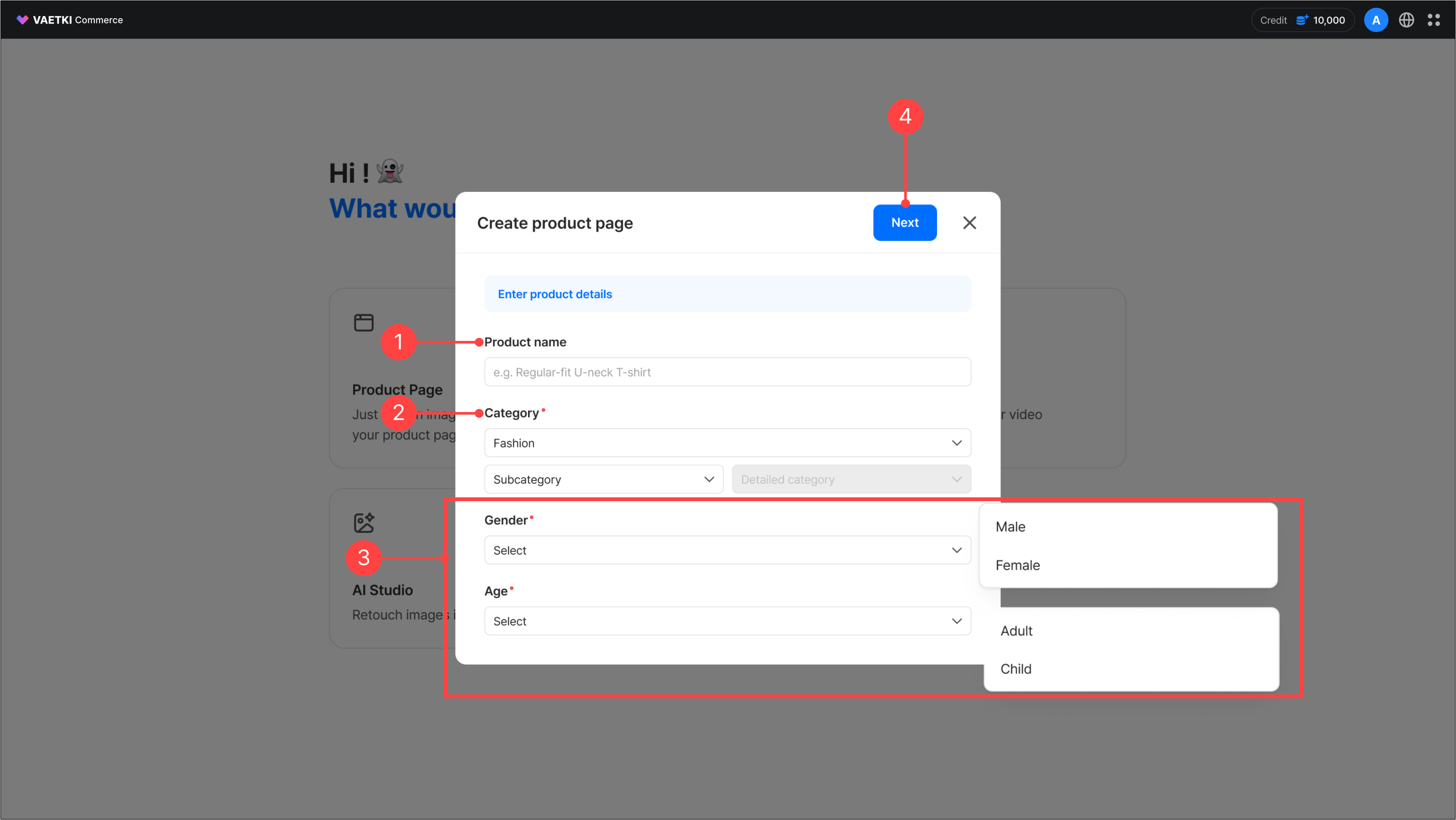
- Enter the product name.
- Select the product category. The product page is generated based on the selected category, so please choose the appropriate one.
- Select the gender and age for the product.
- Once the 'Next' button is enabled, you move to the image upload screen.
* Product name character limit: 100 characters
* Product pages can currently be created in the top-level Fashion category – clothing and some accessories (hats, shoes, bags).
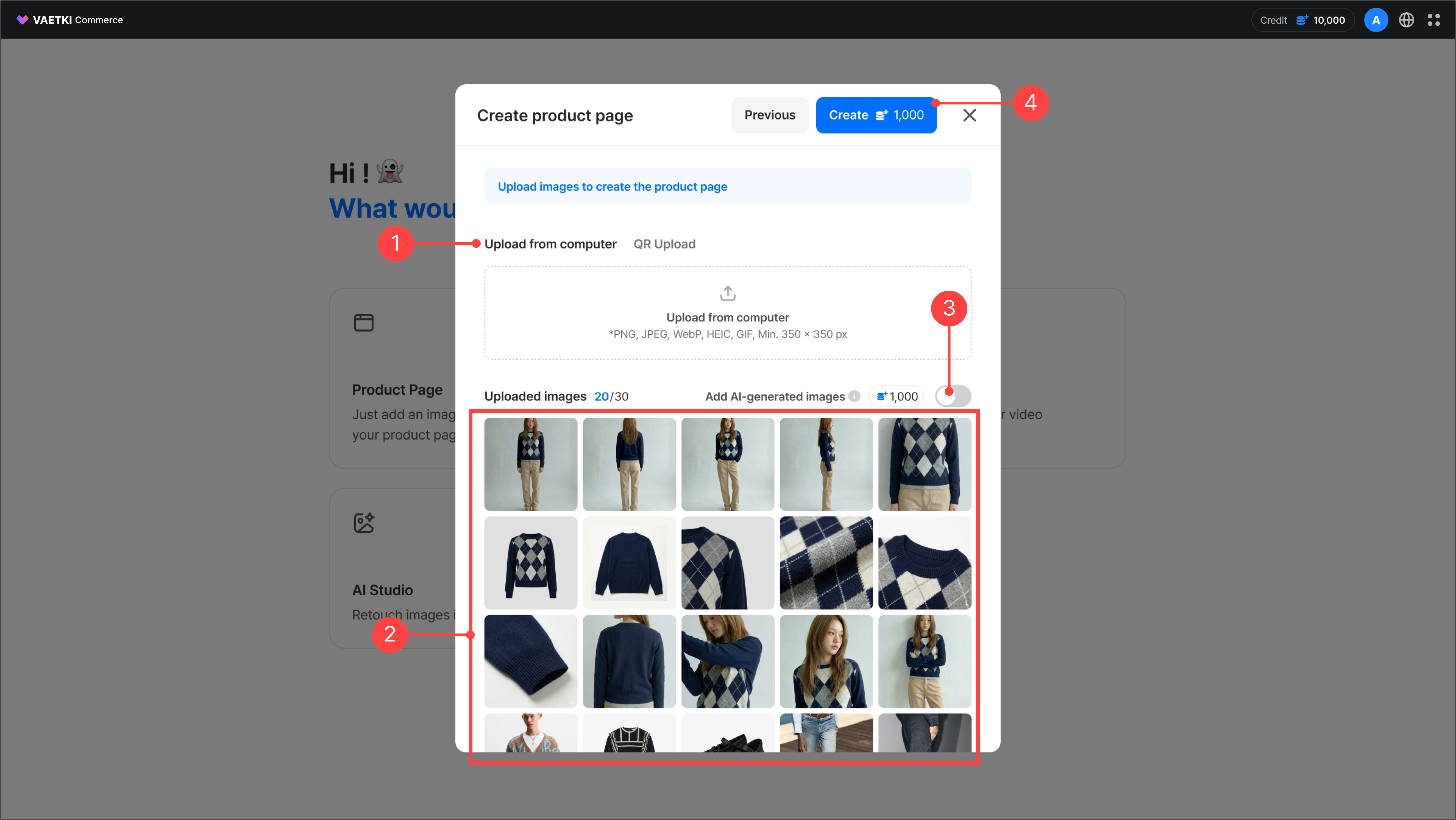
- Local upload: Upload files from your computer.
- You can preview the uploaded images.
- Add images with AI: When this toggle is ON, AI creates model shots based on your uploaded product images.
- When image upload is complete, the credits to be deducted are shown and 'Create' button is enabled. Click the 'Create' button starts product page generation and takes you to the product list.
* This feature requires additional credits. For details, see 1.2. Adding images with AI.
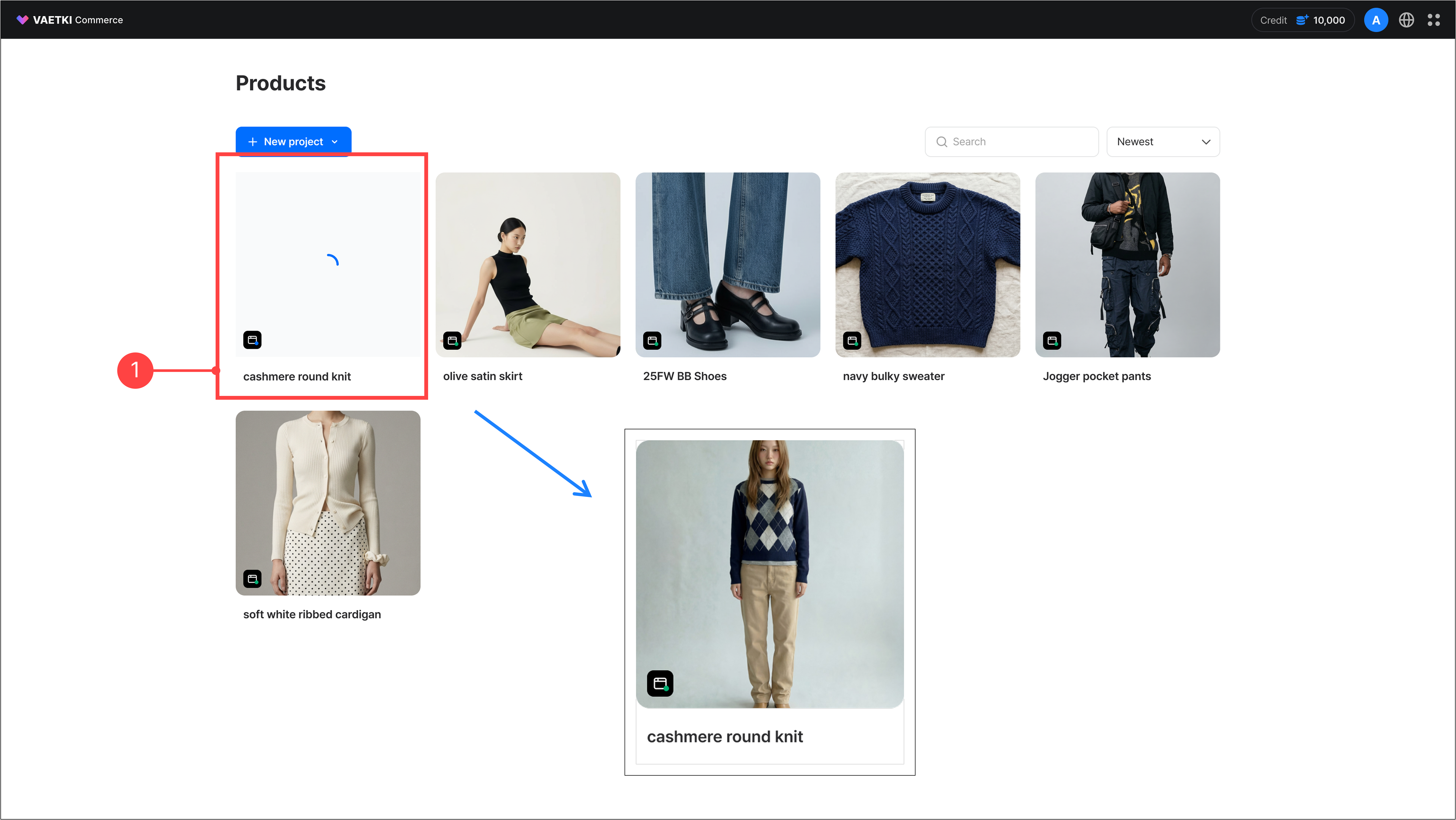
- You can see products being generated in the product list.
- When product page generation is complete, the product page indicator turns green.
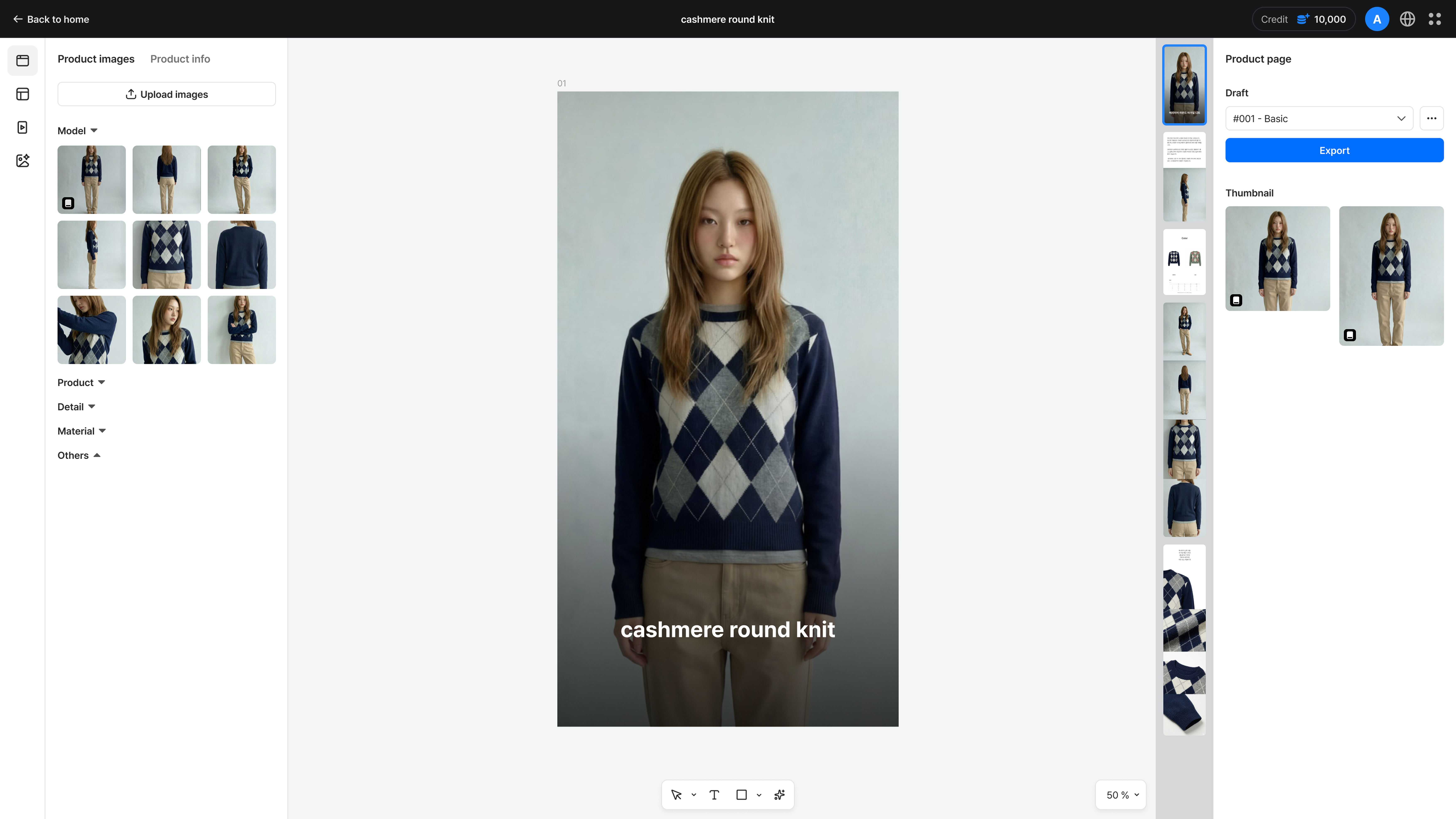
- Once generation is complete, click the product to move to the product page canvas.
- On the canvas, you can edit the product page or download it right away.
- For details on editing the product page, see 2. Editing a product page.
1.2.Creating a product page – Adding AI images
You can generate model shots based on a fashion product’s category, gender, and age, and add them to the product page. 10 model shots are generated and placed together when the product page is created.
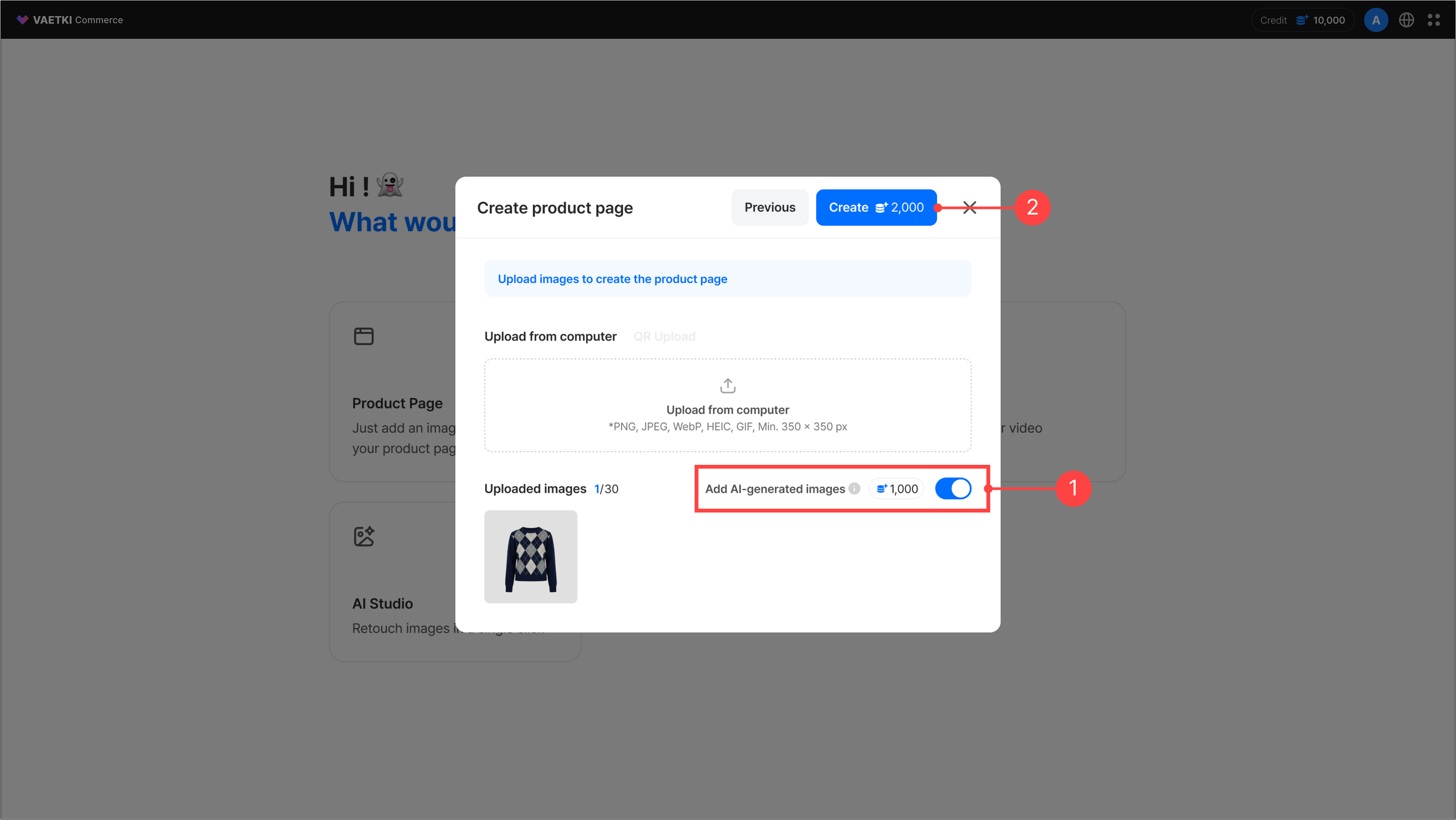
- After uploading at least one product image, click the 'Add images with AI toggle' to enable it.
- The 'Add images with AI' feature deducts additional credits. When the Create button turns blue, you can check the final credits to be deducted. Click the 'Create' button to generate AI images and the product page together.
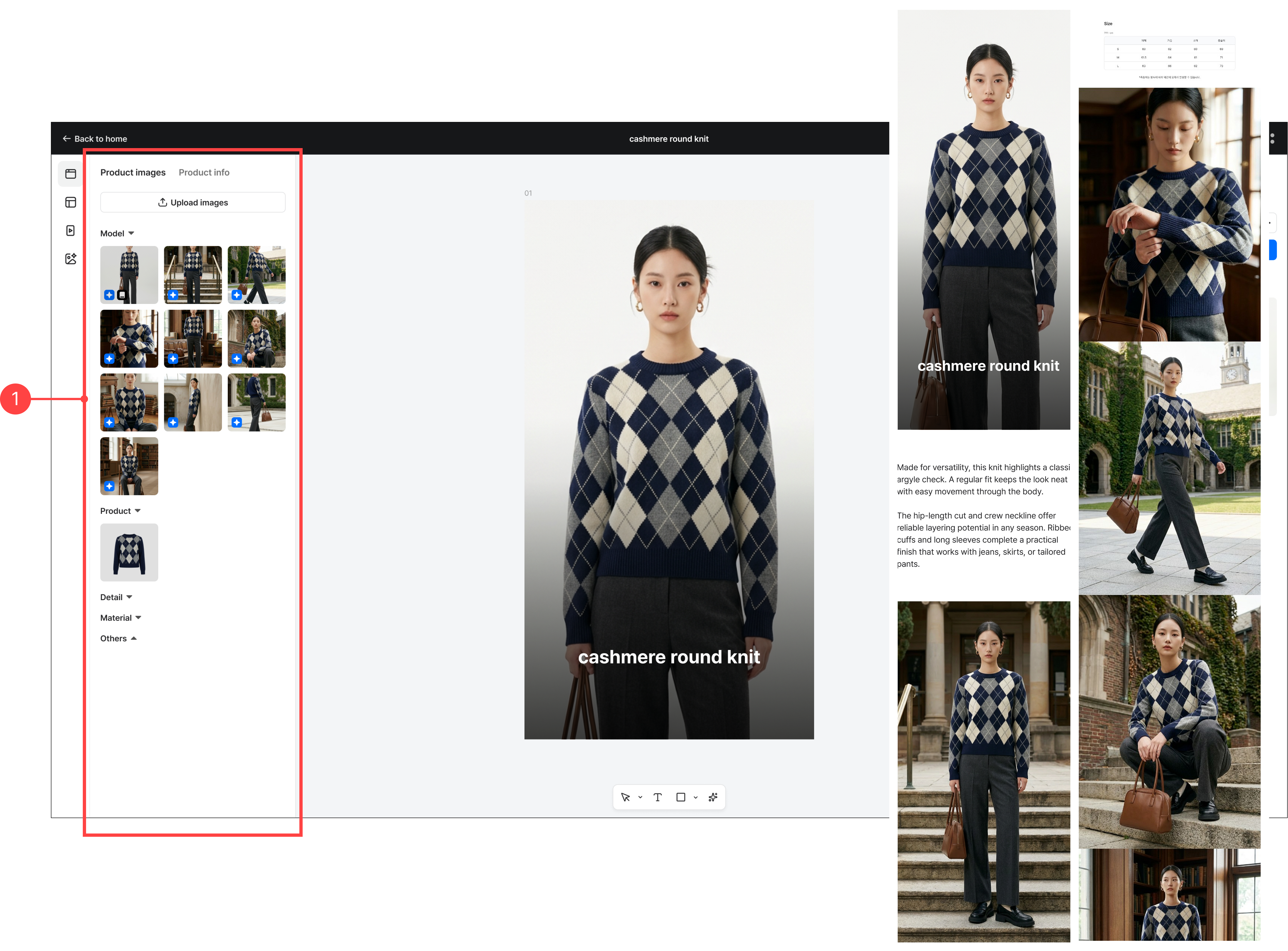
- You can see the AI image generation results at the same time as the product page is generated.
- The generated images are automatically placed on the product page, so you can complete a product page with just a single product image.
2.1.Editing a product page – Canvas overview
You can edit the generated product page on the canvas. Edit text and images or rearrange the module order to build the product page you want.
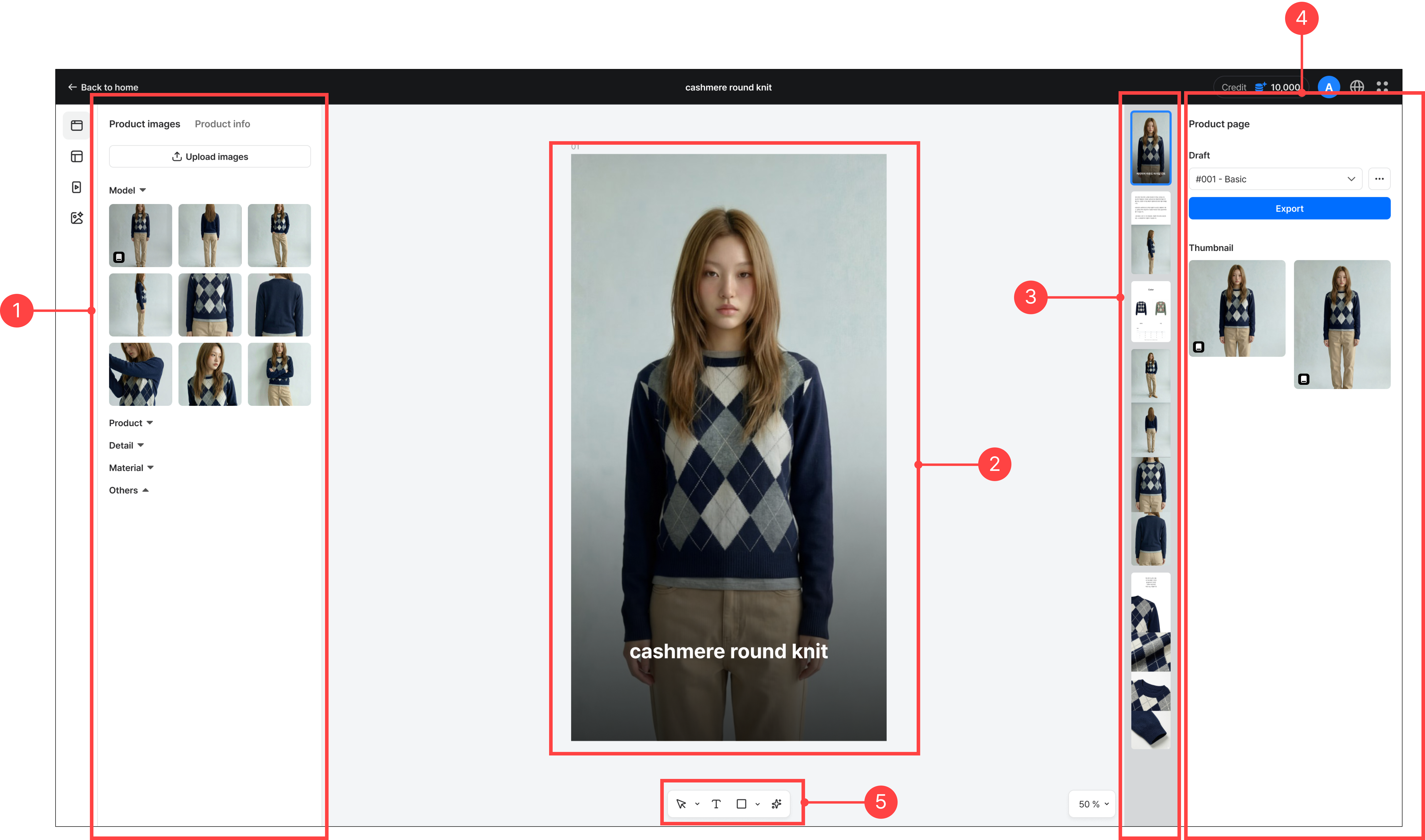
- Left panel: Asset panel
- The module area within the canvas you are currently working on
- Minimap
- Right panel: Design panel
- Bottom toolbar
2.2.Editing a product page – Asset panel
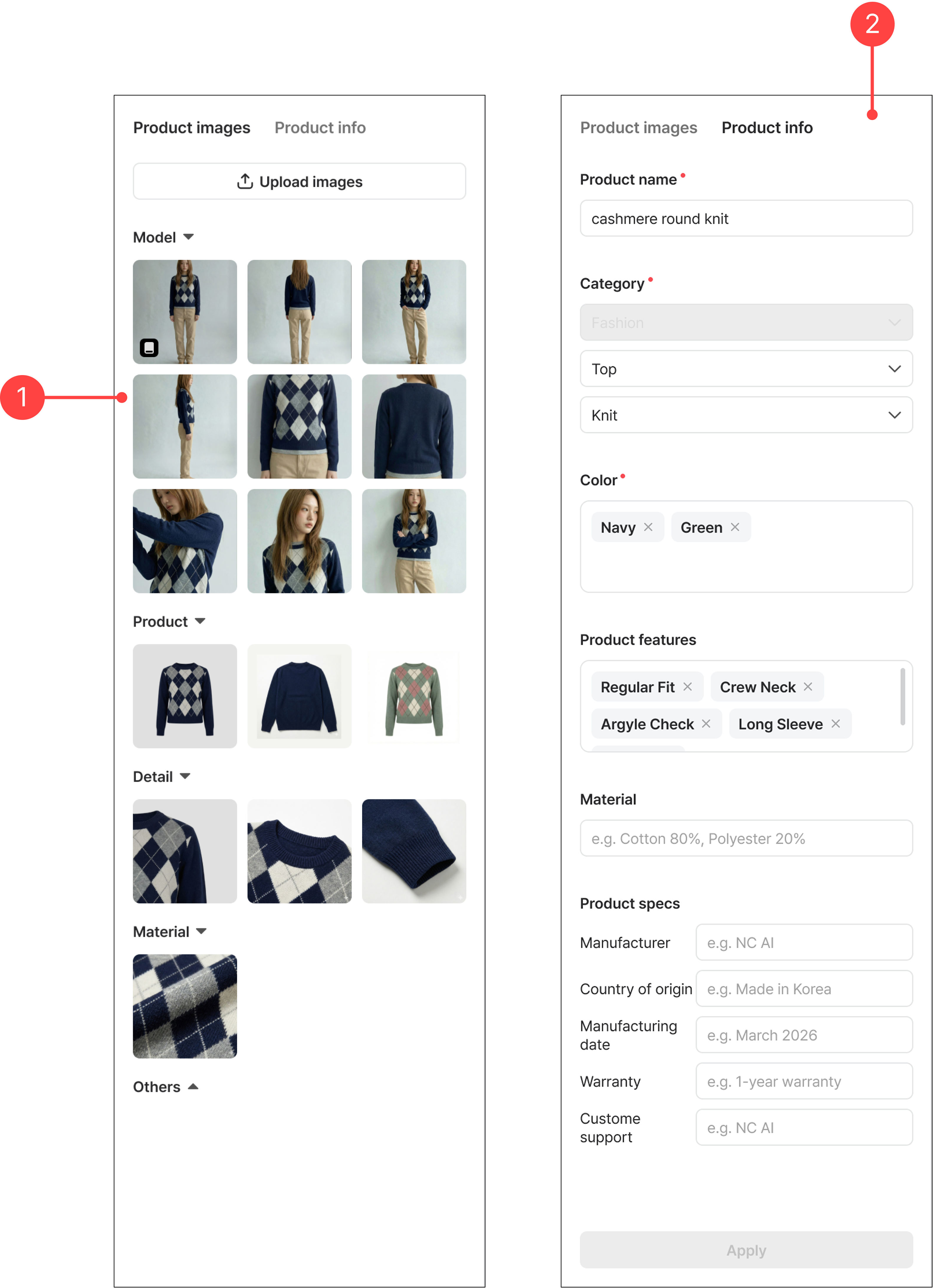
- Product images tab: View your uploaded product images. They are categorized by shot type, and additionally uploaded images and AI-generated images are sorted automatically as well.
- Info tab: An area for managing product metadata. When you enter or edit additional information, the Apply button turns blue. Click the 'Apply' button reflects the entered content in the text parts of the product page, except for the AI-generated areas.
2.3.Editing a product page – Modules
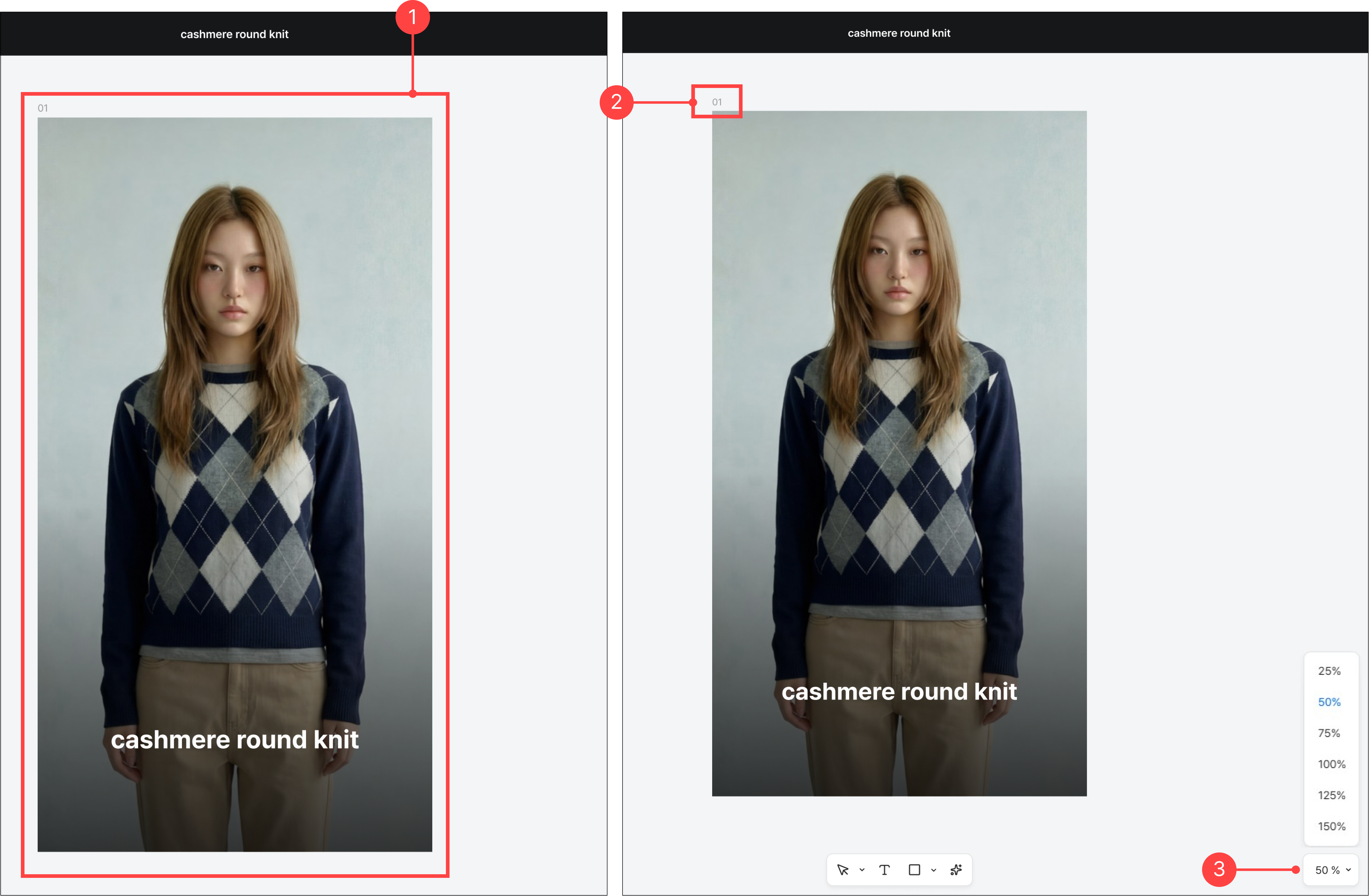
- You can review the module you want to work on, one module at a time.
- The top of the module shows the order of the module you are currently working on.
- You can zoom the module in and out.
2.4.Editing a product page – Minimap
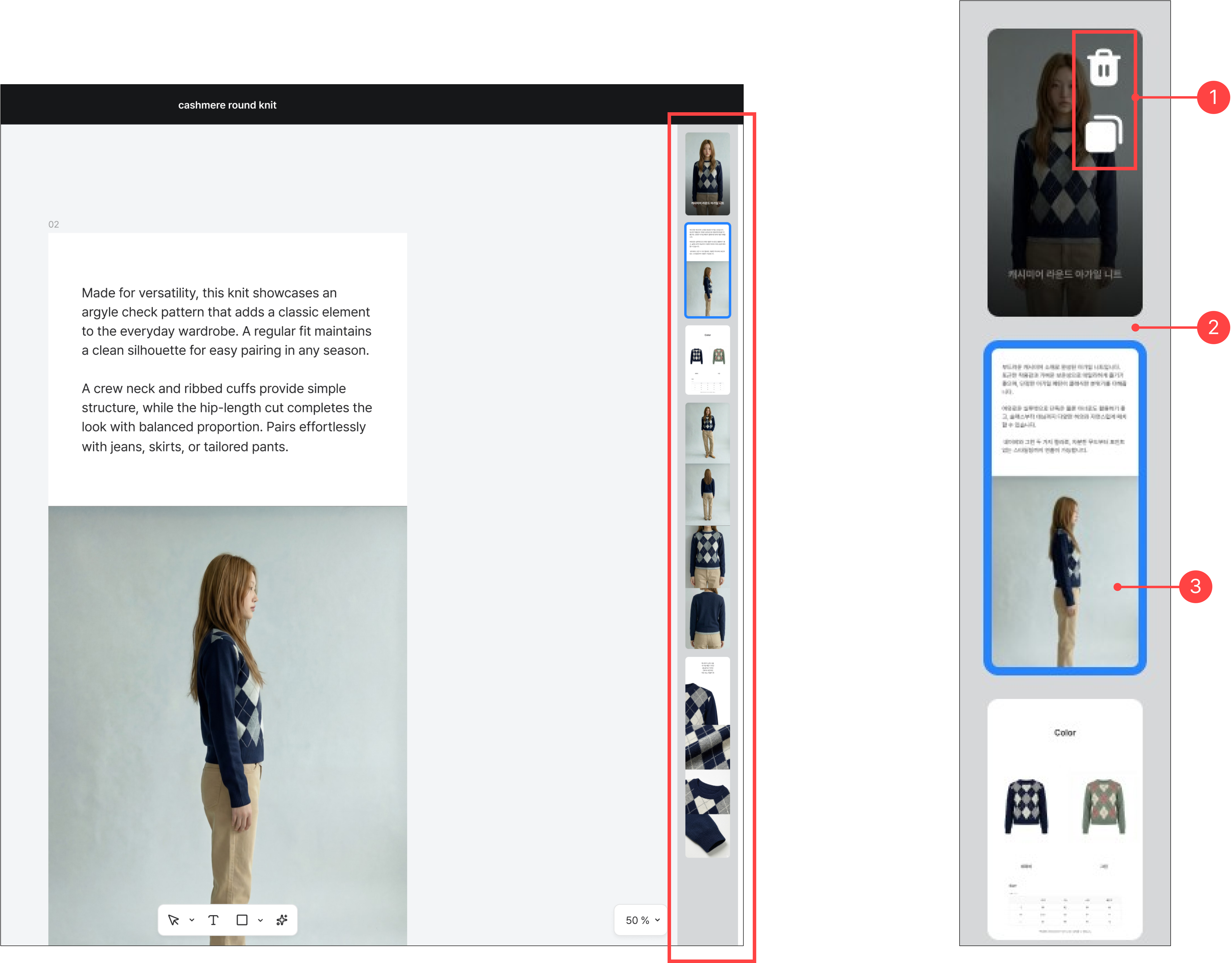
- Hovering over a module in the minimap lets you delete or duplicate it.
- You can change the module order by drag and drop.
- Select a module in the minimap to bring it up on the canvas.
2.5.Editing a product page – Right panel
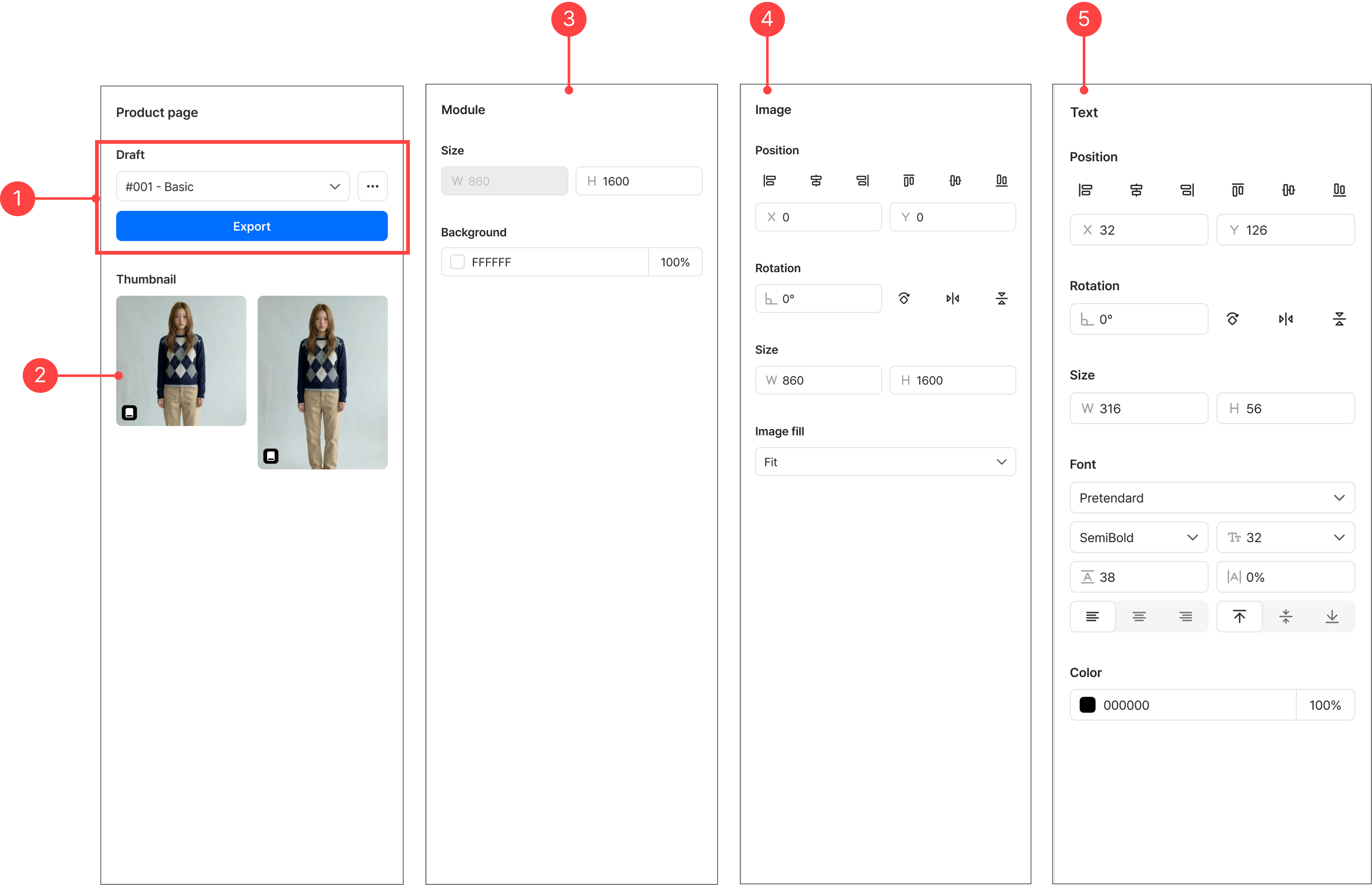
- You can create multiple drafts, and a completed product page can be downloaded via Export.
- You can check the designated thumbnail and choose between two sizes.
- Selecting a module shows a control tab in the panel where you can adjust the module's size and background color.
- When an image is selected, the control tab in the panel lets you adjust the image's position and size.
- When text is selected, the control tab in the panel lets you adjust the text box's position, size, and font style.
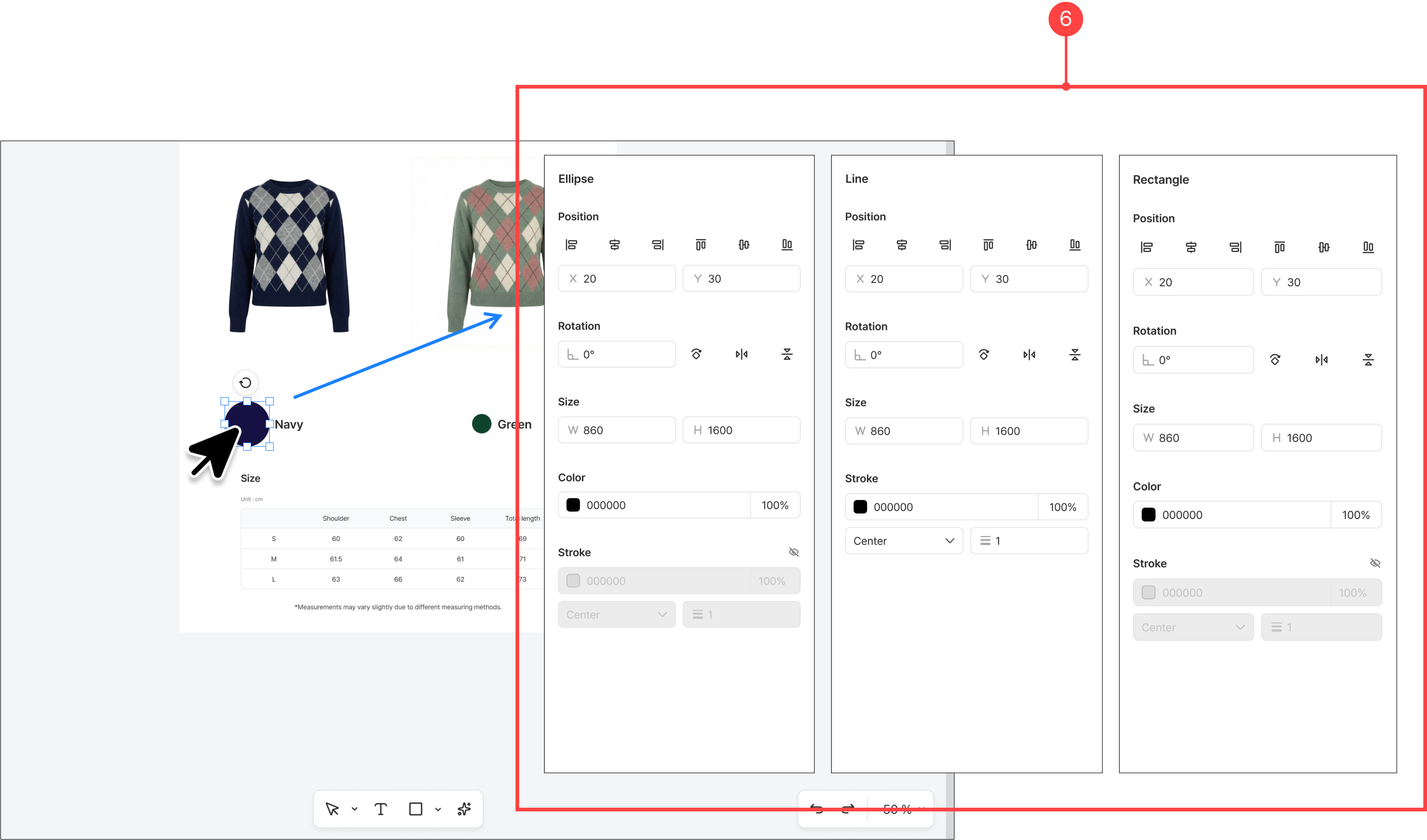
- You can edit line, ellipse, and rectangle elements; selecting the element you want to edit activates its control tab.
2.6.Editing a product page – Bottom toolbar
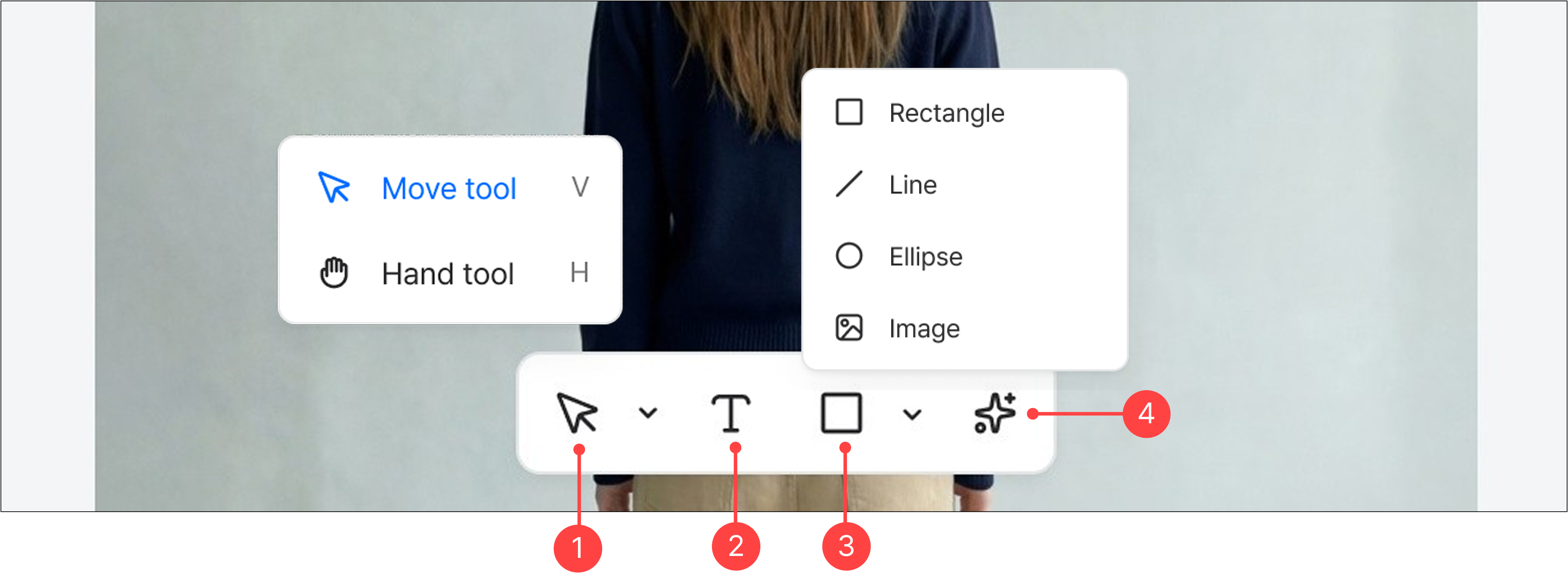
- Move tool: The default selection tool for selecting and moving individual objects (images, text, etc.) on the canvas. Hand tool: A tool for moving the view by dragging the entire canvas.
- You can add a text box.
- You can add shapes (line, ellipse, rectangle) and image.
- The AI editing tool supports content editing.
* For details, see Editing with AI CHAT.
2.7.Editing a product page – Editing text
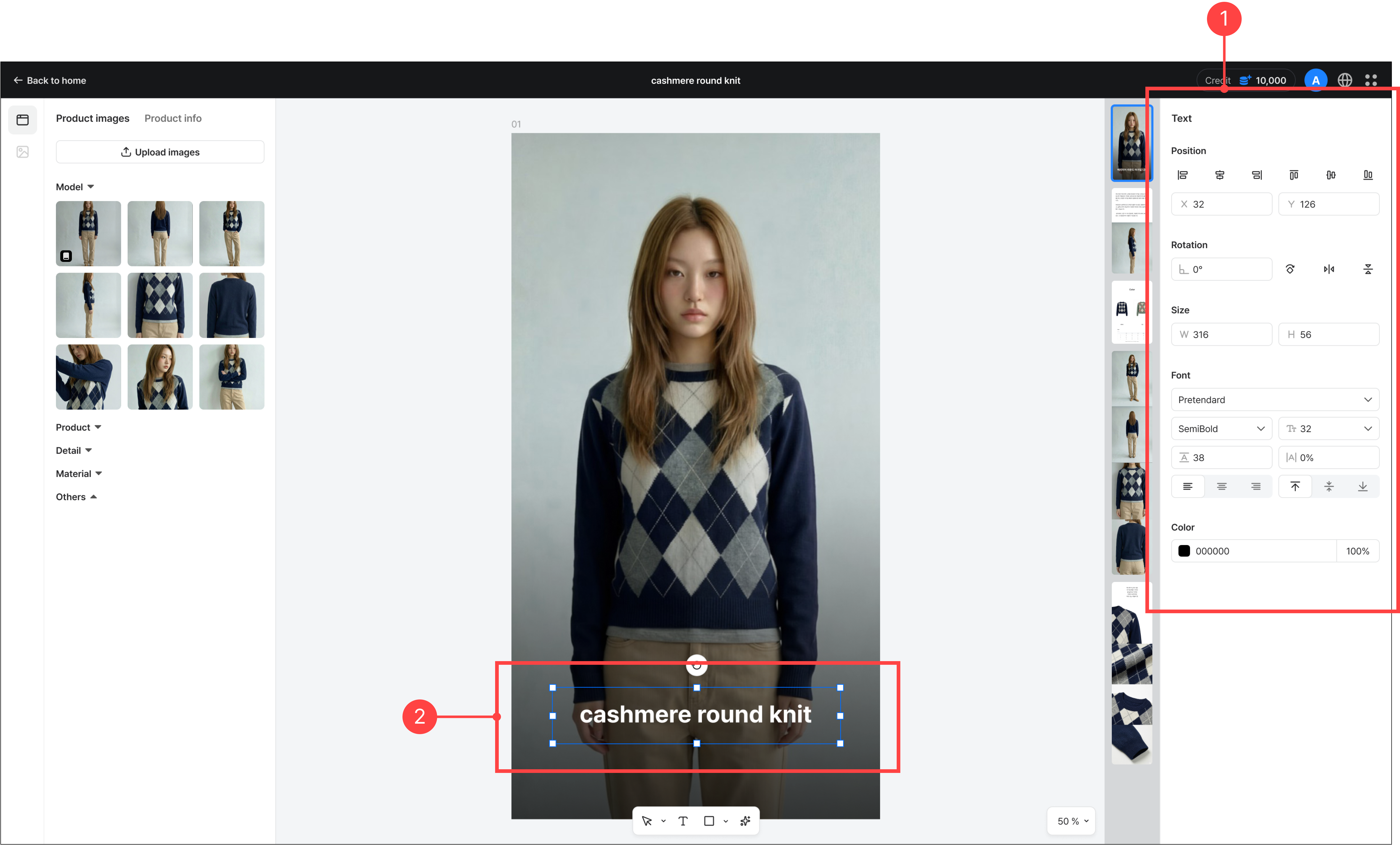
- Selecting text within a module displayed on the canvas activates the text control tab in the right panel.
- You can edit the text content on the canvas and resize the text box directly.
2.8.Editing a product page – Editing images
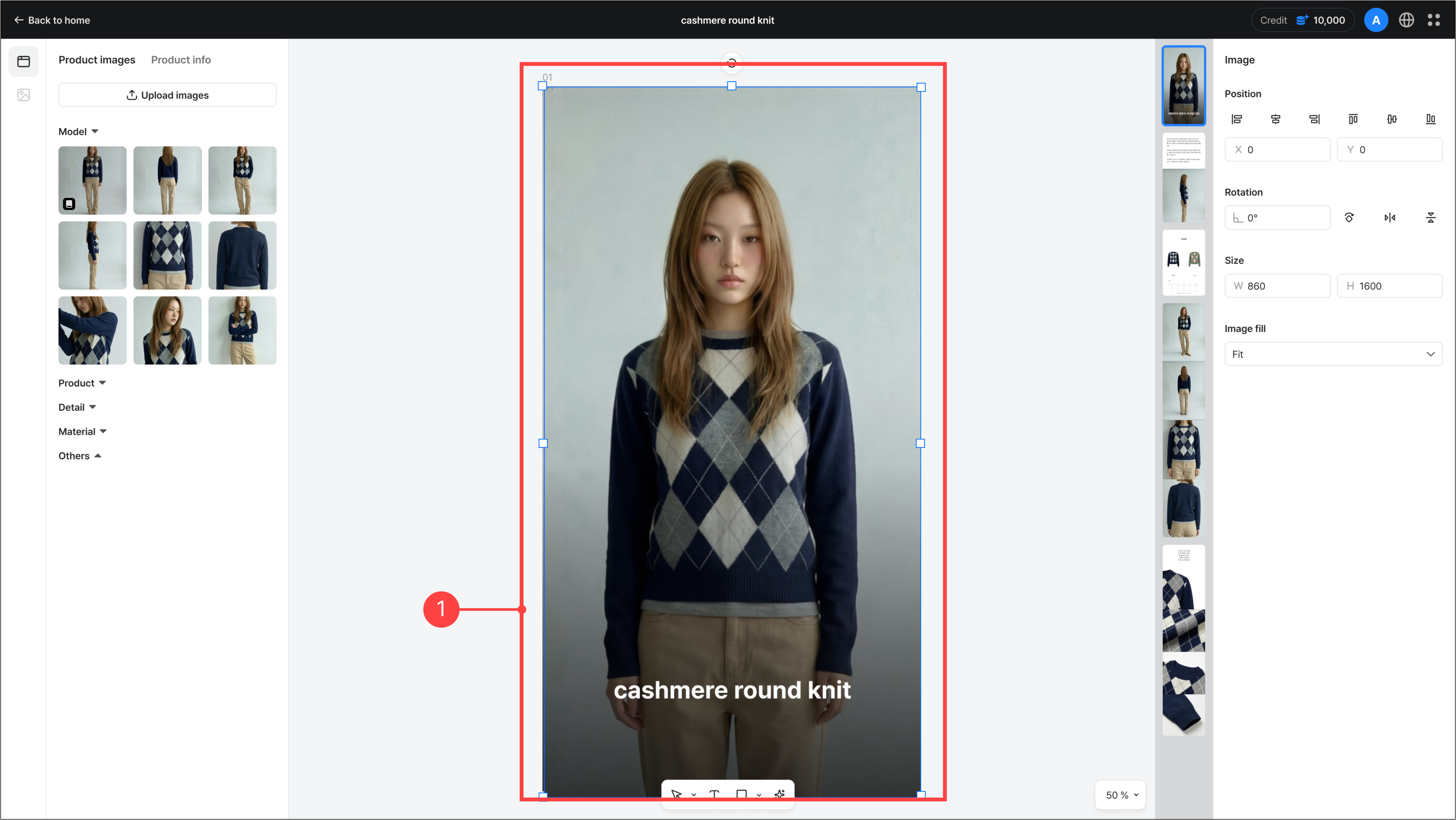
- Selecting an image area activates the image control tab. You can adjust the image's size and position.
2.9.Editing a product page – Creating a new draft
Using the More button in the right panel, you can create alternative drafts of the current product page. Each draft can use a different template or a different tone for the product page text.
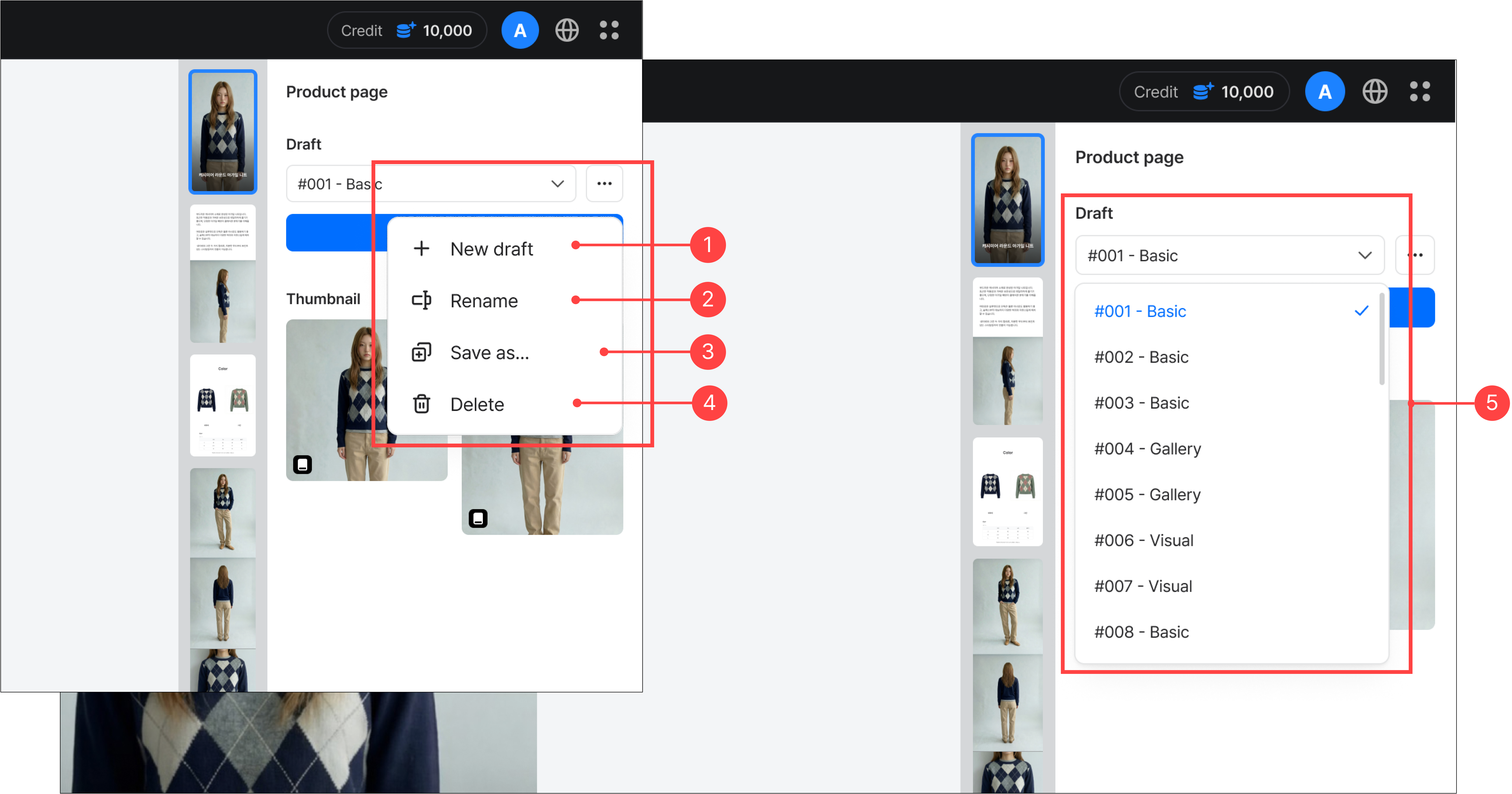
- Use this button to add a new draft.
- You can rename the draft you are currently working on.
- You can duplicate the current draft as-is to create a new one, and rename it as you create it.
- This button deletes the draft you are currently working on.
- Created drafts can be found in the draft list.
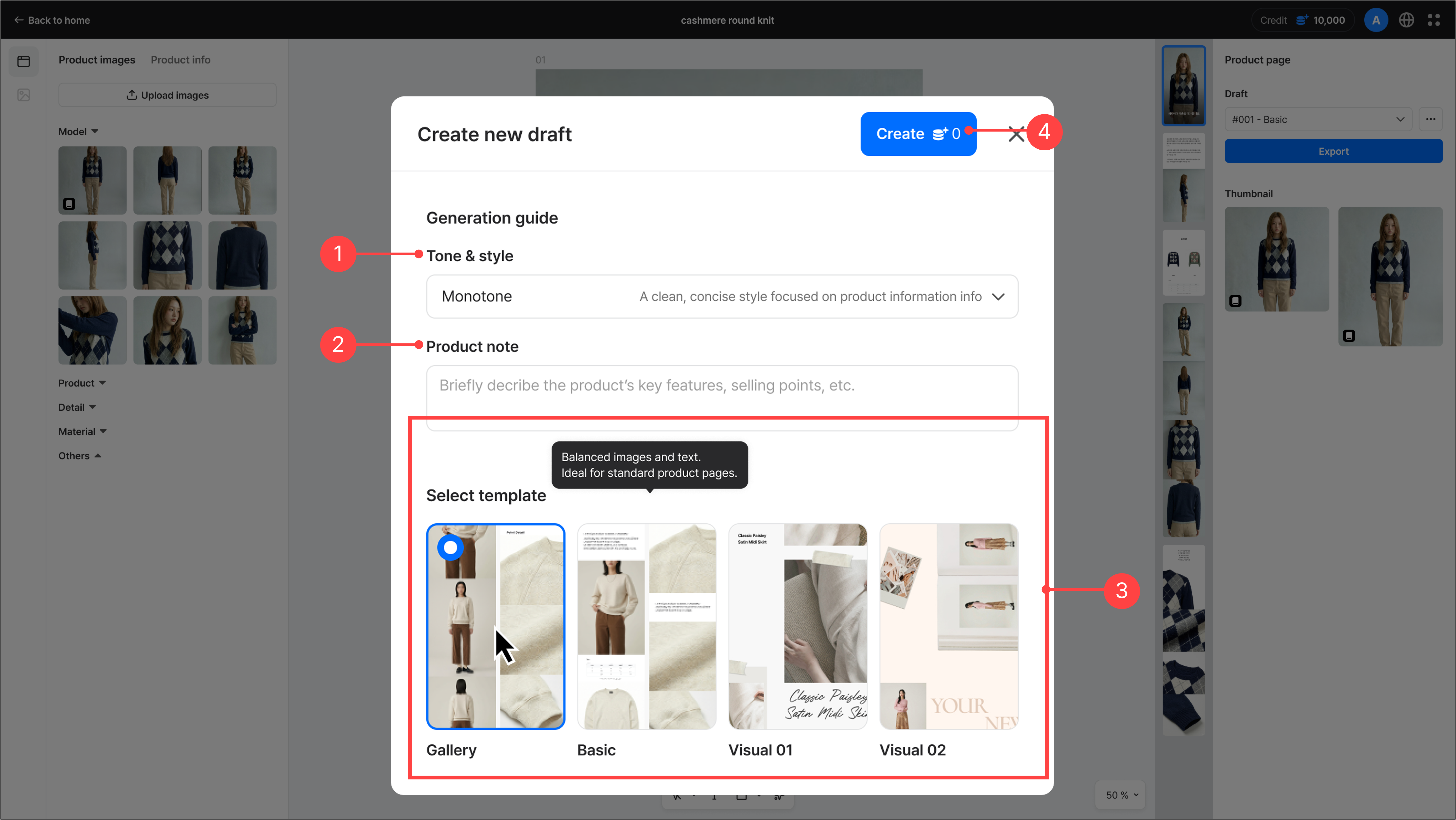
- When you click Create new draft, you can configure the following items to create a draft.
- Tone & Style: Choose the tone for the text generated on the product page.
- Product notes: Add product information to be reflected in the product page text generated for the new draft.
- Template selection: Choose one of the provided templates.
- Click 'Create' button in the top right to generate a new draft.
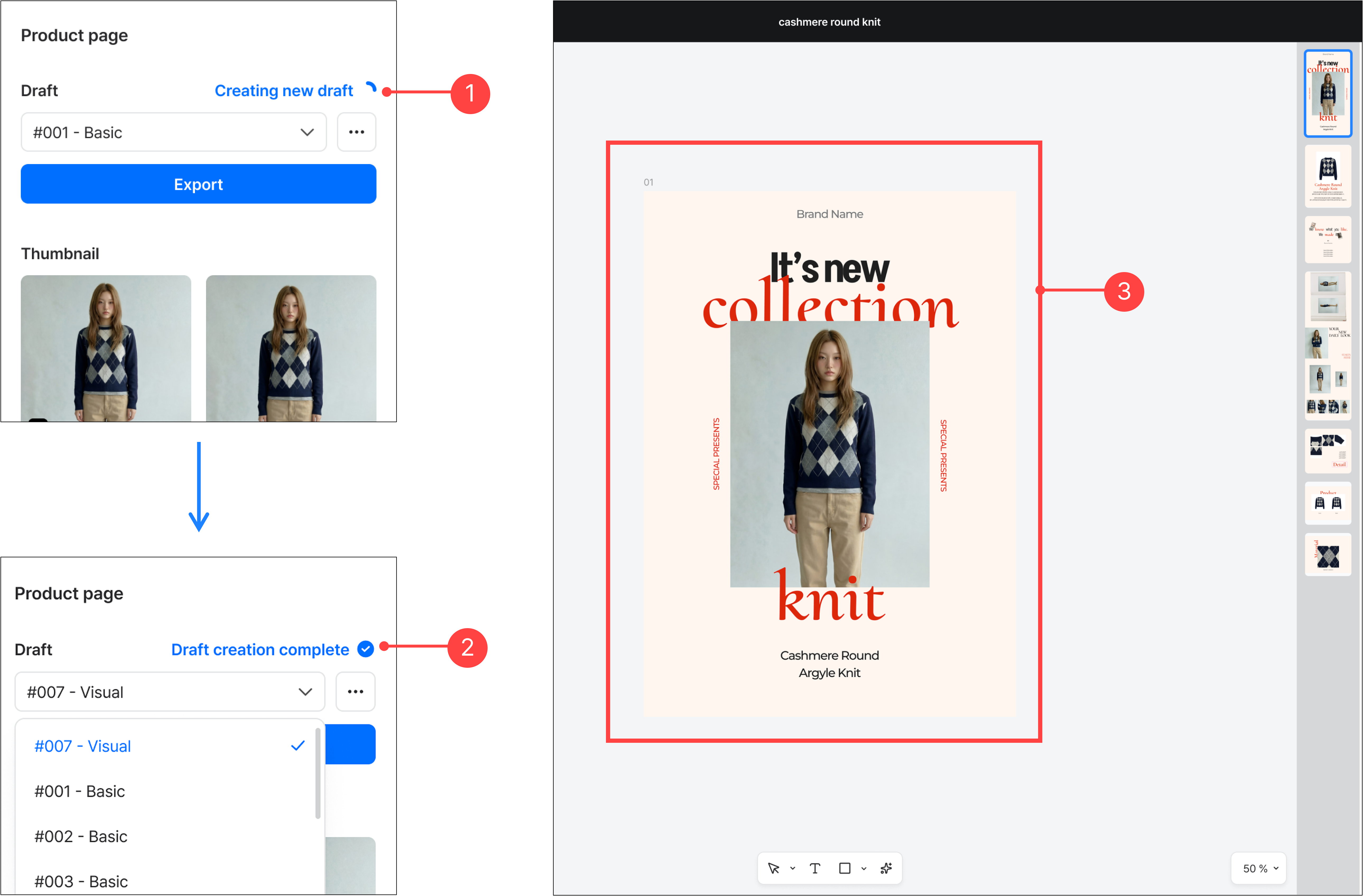
- The status text shows the progress of draft creation.
- When generation is complete, the label changes to 'Draft complete.' The completed draft appears at the top of the draft list.
- Selecting that draft switches the canvas to the generated draft so you can review its content.
2.10.Editing a product page – Editing with AI CHAT
With AI Chat, you can edit a selected text or image component. Select the element you want to change, enter your request, and AI updates it accordingly.
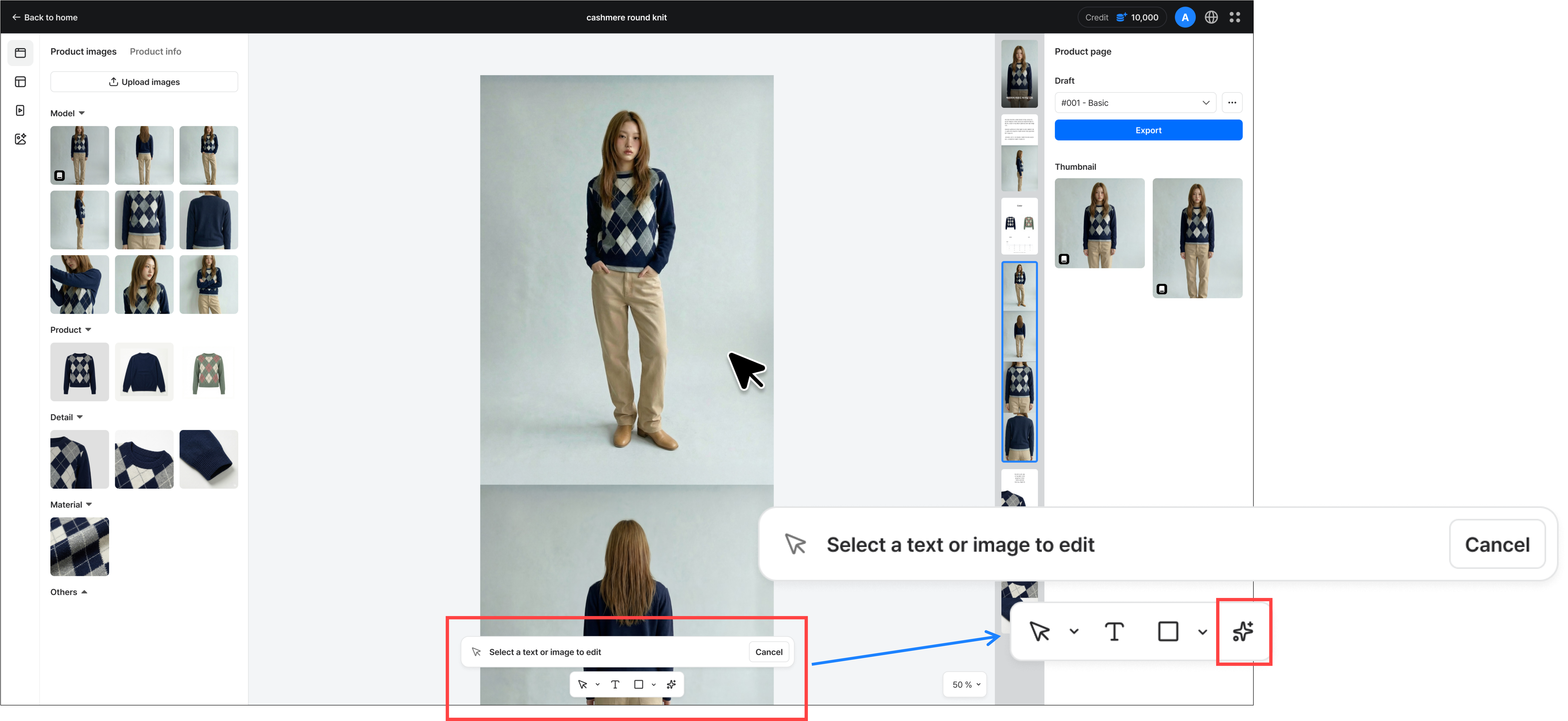
- Click the 'Edit with AI' button in the bottom toolbar, then select the text or image element within the module that you want to edit. You can also select the text or image first and then click the 'Edit with AI' button.
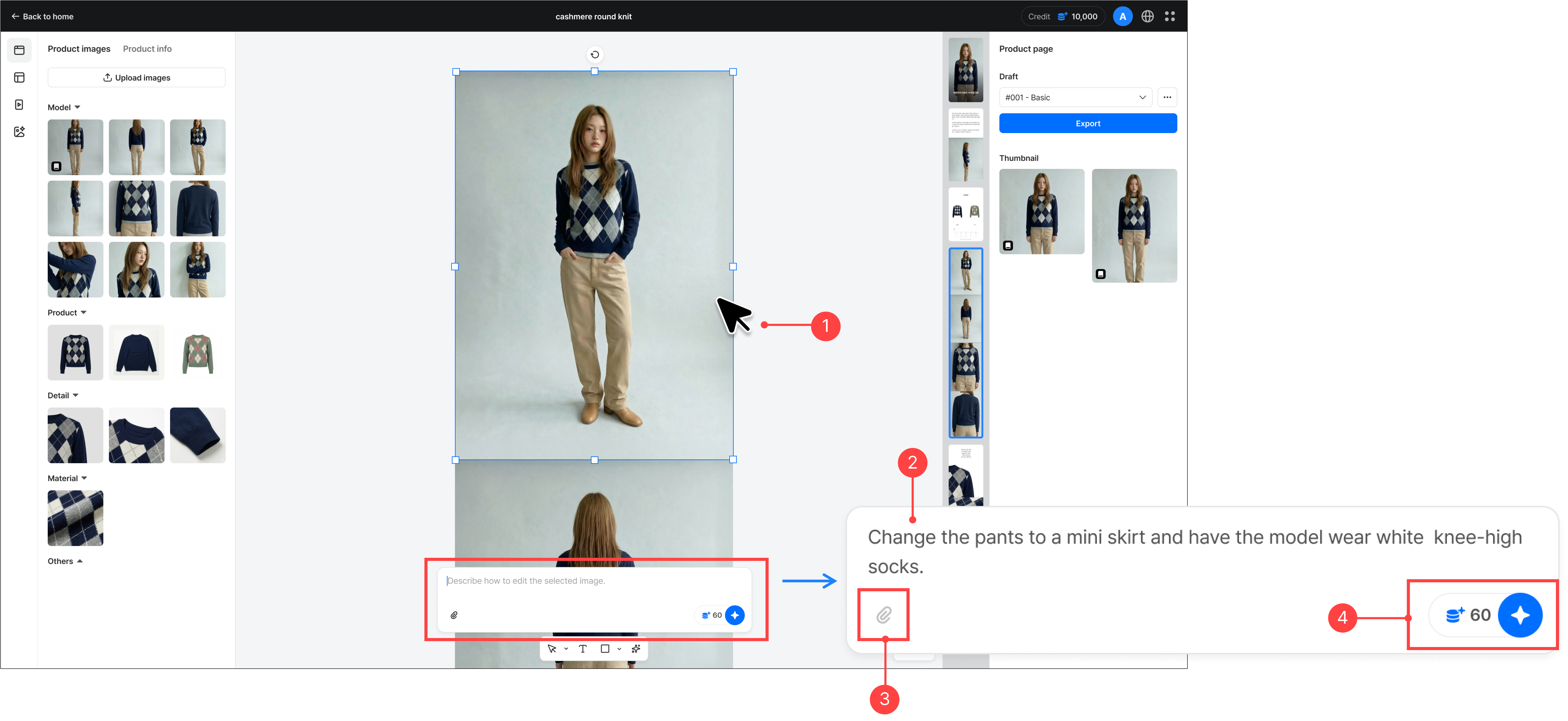
- Click the image you want to edit within the module, or click the 'Edit with AI button' and then select an image. You can select only one image at a time.
- Enter what you want to change in the chat box.
- If needed, you can attach a desired style or reference image.
- After entering your request, click the 'Create' button and AI edits the image.
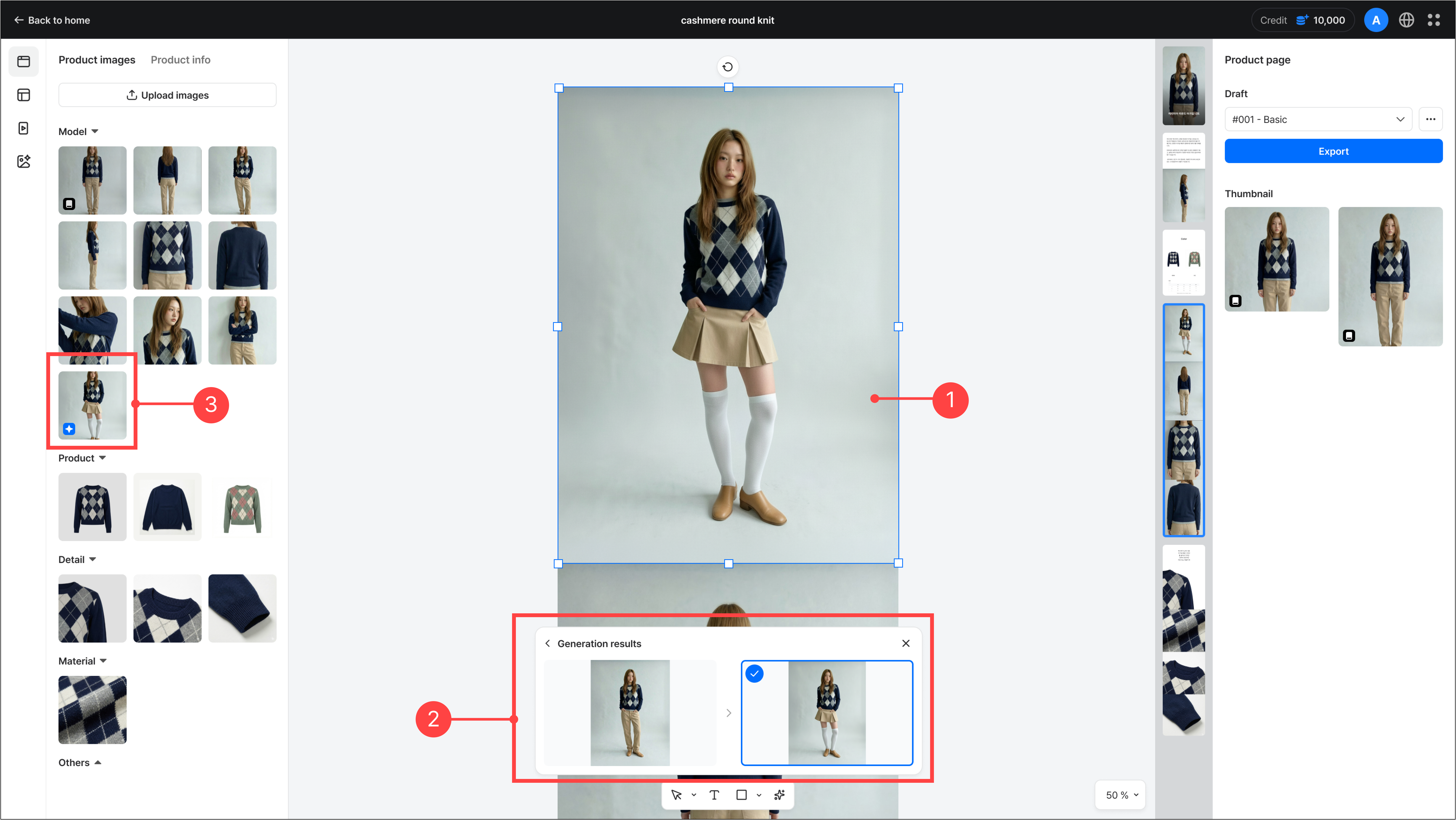
- The generated image is created on the canvas.
- In the result, you can compare the previous image with the newly generated one. If it's not what you wanted, selecting the previous image keeps it in the module.
- The generated image is automatically saved to the asset panel.
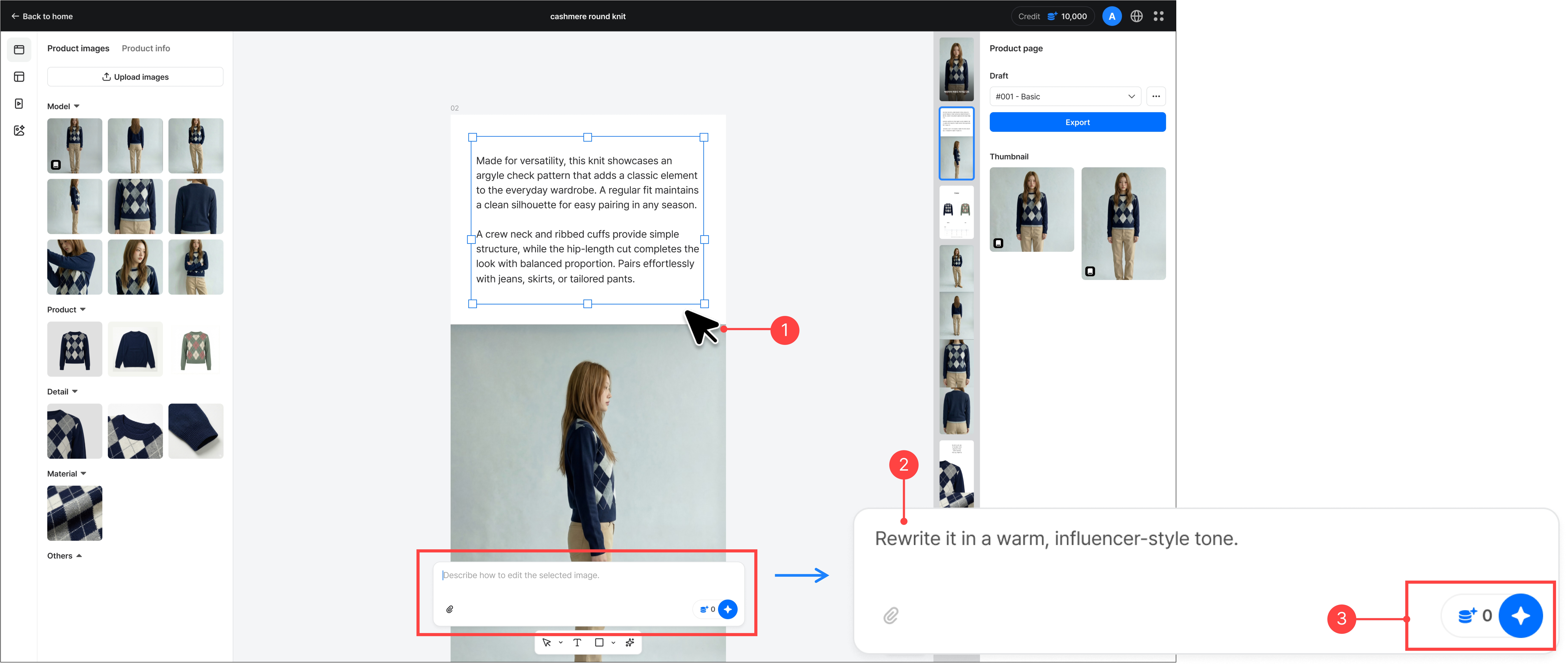
- Click the text you want to edit within the module, or click the 'Edit with AI' button and then select text. You can select only one text element at a time.
- Enter what you want to change in the chat box.
- After entering your request, click the 'Create' button and AI edits the text.
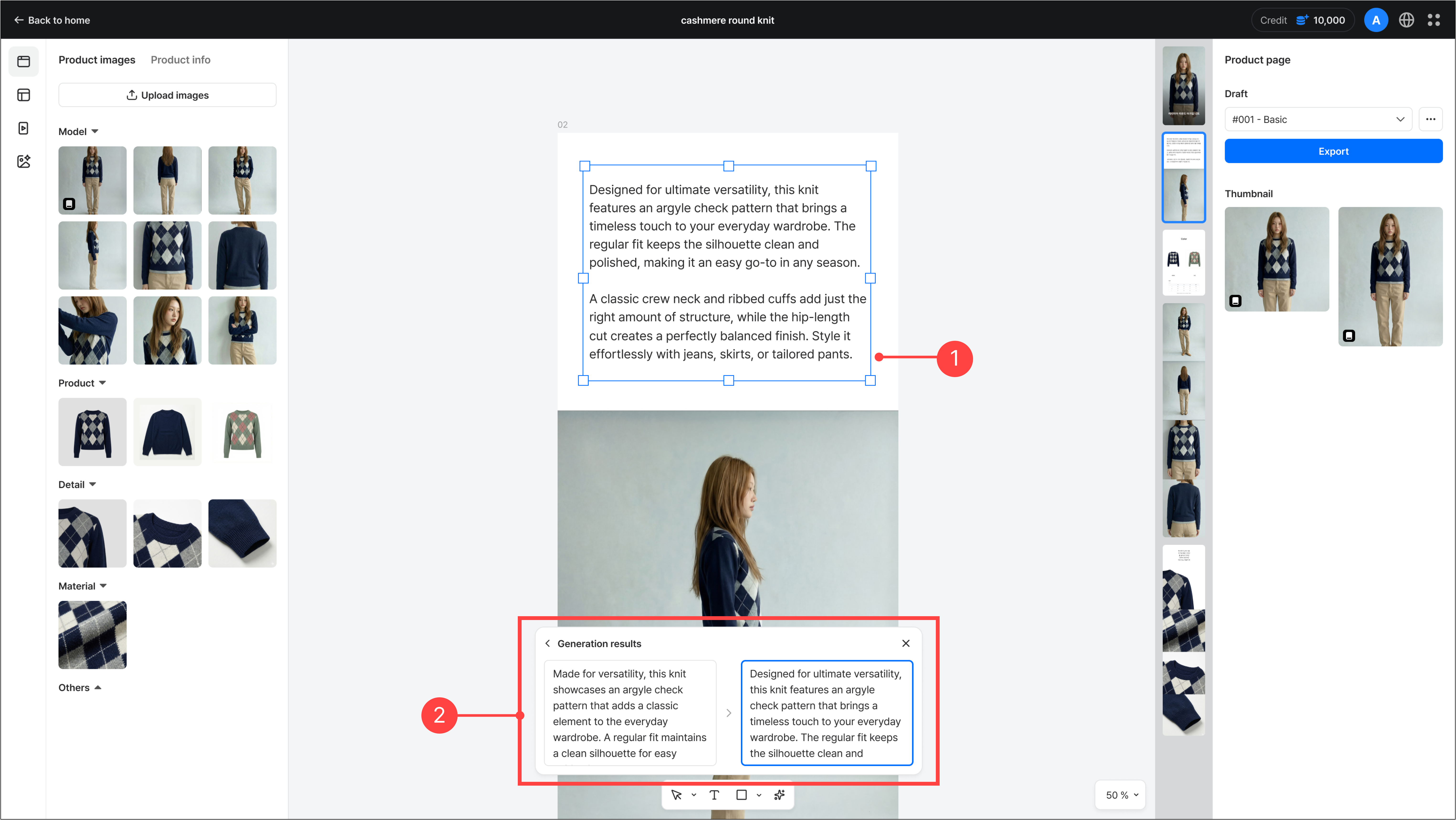
- The generated text is created on the canvas.
- In the result, you can compare the previous text with the newly generated one. If it's not what you wanted, selecting the previous text keeps it in the module.
3.1.Exporting a product page
You can save the generated product page. You can save it in the size that matches the platform specification you want.
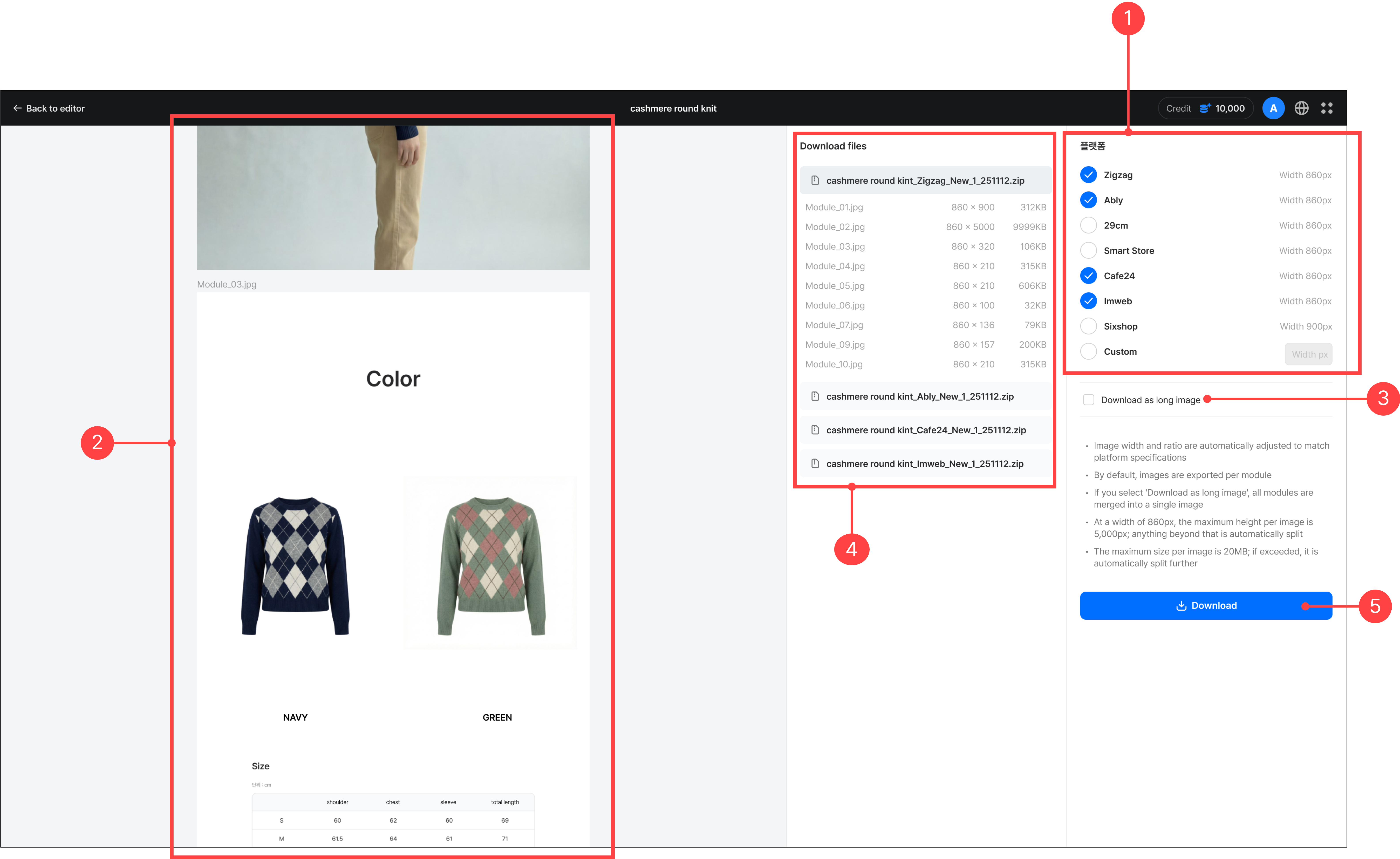
- You can download the product page to match your desired platform specification. Choose a platform specification or download at a custom size.
- You can preview the created product page per platform.
- You can download the entire product page as a single long image.
- When you select a file name, you can preview the list of files to be downloaded per platform.
- Click the 'Download' button to generate and download a ZIP file for each selected platform.
Previous
Product management guide